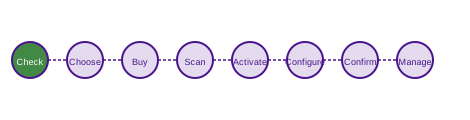
The eSIM Activation Process
Step 1: Verify Device Compatibility
Before purchasing an eSIM plan, confirm that your device supports eSIM. On iPhone, go to Settings > General > About and look for "Available SIM" or "eSIM" entries. On Android, go to Settings > Network & Internet > SIM cards and look for an option to add an eSIM. If you do not see these options, your device may not support eSIM, or your carrier may have locked eSIM functionality.
Step 2: Check Carrier Lock Status
Some devices are locked to a specific operator, which may prevent you from adding an eSIM from a different operator. If your device was purchased directly from a manufacturer or on a SIM-free basis, it is likely unlocked. If purchased through an operator on a contract, you may need to request an unlock after your minimum term has ended.
Step 3: Choose Your eSIM Plan
Research available eSIM plans from UK operators. Consider your data usage, whether you need roaming, contract flexibility, and price. Use the Pricing Guide and Services Overview to help narrow down your options.
Step 4: Purchase the Plan Online
Most eSIM plans are purchased through the operator's website or app. You will need to provide your name, address, and payment details. Some operators require identity verification for contract plans. After purchase, you will receive an email containing your eSIM activation QR code or a link to download it.
Step 5: Add the eSIM to Your Device
On iPhone: Go to Settings > Mobile Data > Add eSIM. Choose "Use QR Code" and scan the code from your email. On Android (varies by manufacturer): Go to Settings > Network & Internet > SIM cards > Add eSIM. Follow the on-screen instructions to scan the QR code. Do not scan the QR code on the same device you are setting up — use a second device or print the code.
Step 6: Label and Configure Your eSIM
After adding the eSIM, you will be prompted to give it a label (e.g., "Personal", "Work", "Travel"). Configure which line handles calls, texts, and mobile data. On dual-SIM devices, you can set different lines as default for different functions.
Step 7: Confirm Activation
Wait for the eSIM to activate — this usually takes a few minutes but can take up to 24 hours in some cases. Once active, you should see your operator's name in the status bar. Make a test call or check your data connection to confirm everything is working correctly.
Step 8: Manage Your Plan
Use your operator's app or website to monitor your data usage, view your bill, top up, or change your plan. Most operators allow you to manage your eSIM profile settings — including temporarily disabling a profile — through their app.
Step 9: Transferring to a New Device
If you upgrade to a new device, you will need to transfer your eSIM profile. The process varies by operator — some allow self-service transfer through their app, while others require you to contact customer support. Note that eSIM profiles cannot simply be copied; the operator must re-provision the profile on your new device.
Step 10: Cancellation and Deletion
To cancel an eSIM plan, contact your operator directly. Once cancelled, you can delete the eSIM profile from your device settings. Note that deleting a profile from your device does not automatically cancel your plan — you must contact the operator separately.
Preparation Checklist
- Confirm your device model supports eSIM
- Check that your device is not carrier-locked
- Ensure your device has the latest firmware/OS update
- Have a second device or printed copy available to scan the QR code
- Check your current data usage to choose the right plan size
- Note your PAC code if you plan to port your existing number
- Verify your billing address matches your operator records
- Check the operator's coverage map for your home area
- Review the plan's roaming policy if you travel internationally
- Read the terms and conditions, particularly regarding early termination
- Ensure you have a stable internet connection during activation
- Keep your activation email accessible during the setup process